
You are watching your traffic climb, yet your earnings flatline. It is a soul-crushing paradox familiar to thousands of publishers who rely on Google AdSense to monetize their hard work. You pour hours into crafting premium content, only to see your hard-earned clicks yielding a measly two cents each.
The culprit behind this financial stagnation is rarely your traffic volume. Instead, it is almost always poor ad relevancy and the presence of bottom-tier advertisers eating up your prime real estate. If you want to stop leaving money on the table, you must take control of what displays on your site.
By learning how to block low-paying categories in Google AdSense to instantly boost CPC, you can filter out the digital noise. This guide provides the exact blueprint to optimize your ad auction, filter out low-cost bids, and force Google to display high-value creatives that maximize your revenue per click.
—
The Mechanics of AdSense Auctions: Why Low CPC Happens
Google AdSense operates on a dynamic, real-time bidding framework. When a user lands on your page, an instantaneous auction occurs behind the scenes, where multiple advertisers vie for your available ad slots. In a perfect world, the highest bidder always wins, maximizing your earnings effortlessly.
However, the reality of the digital advertising ecosystem is far more complex. If your site lacks strict filtering, low-paying advertisers running broad-targeted, low-budget campaigns can slip through the cracks and win impressions. They exploit open categories, driving down your average Cost Per Click (CPC) and diluting your overall Effective Cost Per Mille (eCPM).
Expert Insight: “AdSense operates on a second-price auction model, meaning the winner pays just one cent more than the second-highest bidder. When you eliminate low-paying categories, you effectively raise the floor price of your auction, forcing premium advertisers to bid closer to their actual maximum budgets.”
When you allow generic, low-yield ad categories to populate your layout, you crowd out high-intent advertisers. This lack of competition means premium brands can win your ad space for a fraction of what they are truly willing to pay. To fix this, you must actively manage your blocking controls within the AdSense dashboard.
—
Step-by-Step Guide to Blocking Low-Paying Categories
Navigating the Google AdSense dashboard can feel overwhelming, but isolating your blocking controls is a straightforward process. Taking thirty minutes to configure these settings can permanently alter your site’s monetization trajectory. Follow these precise steps to audit and restrict underperforming ad categories.
Step 1: Navigate to Blocking Controls
Log in to your Google AdSense account and look at the left-hand navigation menu. Click on the Brand safety tab, then expand the dropdown menu and select Content. From there, click on Blocking controls to access the central hub for managing ad delivery across your web properties.
Step 2: Isolate General Categories
Within the blocking controls interface, locate the General categories sub-tab. Here, you will find a comprehensive list of broad industry classifications, such as Apparel, Finance, and Real Estate. Review the percentage of ad impressions these categories receive versus the percentage of revenue they actually generate for your account.
Step 3: Analyze and Block General Categories
Look for massive disparities where a category consumes 15% of your total impressions but yields less than 2% of your revenue. Click the toggle switch next to these underperforming categories to turn them from “Allowed” to “Blocked”. Be conservative initially, targeting only the most flagrant underperformers to avoid a sudden drop in ad fill rate.
Step 4: Audit Sensitive Categories
Go back to the main blocking controls page and click on Sensitive categories. This section covers highly specific and often volatile niches like Astrology, Politics, and Weight Loss. Because these categories frequently attract aggressive, low-quality programmatic ads, they are primary candidates for strategic blocking.
Step 5: Apply Changes and Monitor
Once you have toggled off the offending niches, click save to apply the updates across your network. AdSense updates these rules dynamically, meaning you will begin to see a shift in your ad auction landscape within 24 to 48 hours. Keep a close eye on your daily reports to measure the direct impact on your earnings metrics.
—
Identifying the Worst Offending Categories for US Traffic
Not all ad categories are created equal, especially when targeting a high-value audience based in the United States. While US traffic boasts some of the highest global ad spends, it also attracts an immense volume of cheap, arbitrage-focused campaigns. Identifying these low-yield niches is paramount to protecting your revenue streams.
Historically, categories like Social Networks, Jokes & Humour, and Video Games suffer from notoriously low CPC rates. Advertisers in these spaces typically chase mass visibility rather than high-intent conversions. Consequently, their bids remain low, dragging down your overall account performance if left unchecked.
To give you a clearer picture of what to look for, review this standard breakdown of common underperforming categories versus high-performing alternatives:
| Low-Paying Category (Block Candidates) | High-Paying Category (Keep Allowed) |
|---|---|
| Jokes, Trivia & Humour | Finance & Insurance |
| Video Games & Casual Gaming | Business & Industrial |
| Astrology & Esoteric Beliefs | Legal & Law Firms |
| Apparel & Fashion Accessories | Technology & SaaS Solutions |
Conversely, fields like Business, Real Estate, and Legal Services demand immense acquisition costs, driving up bidding competition. If your site attracts US users, you want to leave maximum breathing room for these high-paying sectors. Blocking the low-yield noise ensures that premium buyers aren’t priced out by cheap, mass-targeted ad inventory.
—
The Fine Line: Balancing Block Rates and Fill Rates
Aggressive blocking feels empowering, but it carries a significant inherent risk that every publisher must manage carefully. Every time you block a category, you remove hundreds of potential advertisers from your site’s internal marketplace. If you block too aggressively, you risk decimating your ad fill rate entirely.
Fill rate represents the percentage of ad requests that are successfully fulfilled with an ad creative. If you block 50% of all available categories, Google may struggle to find an eligible advertiser for every slot on your page. When this happens, your unfilled ad slots display blank space, instantly tanking your total daily revenue.
To avoid this pitfall, we highly recommend adhering to the 15% Rule of programmatic optimization.
The 15% Rule: Never block more than 15% of total ad categories at any given time. Your goal is not to eliminate all low bids, but rather to eliminate the bottom tier of advertisers while maintaining a healthy, hyper-competitive auction environment.
Think of your ad inventory as a physical storefront. It is far better to display a slightly lower-paying ad than to leave a shelf completely empty and earn zero revenue. Maintain a delicate balance, and always let data guide your adjustments rather than emotional guesswork.
—
Advanced Optimization: Refining by Ad Network and URL
If you want to take your monetization strategy to the next level, you cannot rely solely on category blocking. The AdSense dashboard contains granular tools that allow you to block specific ad networks and individual advertiser URLs. This micro-management approach yields incredible control over your user experience and revenue metrics.
Blocking Specific Ad Networks
Many third-party ad networks buy inventory through Google AdSense via certified ad networks. Some of these networks are notorious for serving slow-loading, low-paying, or visually intrusive ads. By navigating to the Certified ad networks tab, you can search for and disable networks that historically underperform on your site.
Targeting Underperforming URLs
Have you ever noticed a repetitive, low-quality ad constantly appearing on your own blog posts? You can copy the destination link of that ad and paste it directly into the Advertiser URLs blocking tool. This instantly bans that specific company from displaying ads on your property, forcing them off your site permanently.
This dual approach ensures that even if a low-paying advertiser manages to slip through a broad category filter, you have the means to eliminate them manually. It keeps your monetization ecosystem exceptionally lean, clean, and highly profitable over long periods.
—
Measuring Success: KPIs and Data Auditing After Blocking
Never implement optimization strategies in the dark without a clear framework for measuring success. After making modifications to your category blocking settings, you must establish a baseline to track performance over the following weeks. This ensures that your revenue adjustments are moving in a positive direction.
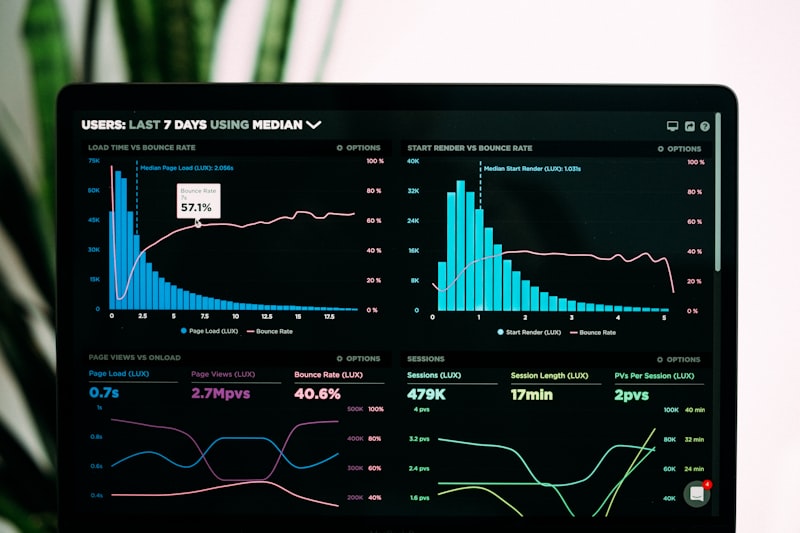
The primary metric to monitor is your overall Page RPM (Revenue Per Mille), which measures how much money you earn per one thousand page views. While watching your individual CPC rise is rewarding, Page RPM is the true indicator of profitability. It combines both CPC fluctuations and fill rate shifts into a single, cohesive health metric.
Keep a close eye on your AdSense reports every seven days, focusing heavily on these three vital key performance indicators:
- Average Cost Per Click (CPC): This value should see an incremental rise as lower-tier advertisers are systematically filtered out of your auctions.
- Ad Fill Rate: Ensure this metric stays well above 90-95%; a sharp drop indicates you have blocked too many categories.
- Total Impressions: Monitor this to confirm that Google is still successfully serving ads across all your designated layouts without interruptions.
Give every optimization experiment at least 14 days to accumulate sufficient data before making further adjustments. Programmatic algorithms require time to re-calibrate, self-optimize, and discover new premium buyers for your updated layout parameters.
—
Frequently Asked Questions
Will blocking categories lower my overall AdSense revenue?
It can if you block too many categories at once. However, if you carefully target only the lowest-performing niches that consume massive impressions with minimal financial return, your revenue will typically increase as higher-paying ads take their place.
How long does it take to see a boost in CPC after blocking?
While changes take effect within 24 to 48 hours, it generally takes two weeks for the programmatic system to fully adjust. Advertisers need time to bid on your newly refined inventory layout before you notice significant, stable macro shifts in your average CPC.
Can I block specific advertisers who bid too low?
Yes, you can use the Advertiser URLs blocking feature to target specific websites that serve cheap or irrelevant ads. This allows you to surgically remove low-yield competitors without impacting broader industry classifications that might still hold value.
Is there a limit to how many categories I can block?
Google allows you to block up to 250 general categories, but doing so is highly discouraged. To maintain competitive auctions and protect your fill rate from collapsing, keep your total blocked categories below 15% of the total available options.
—
Take Control of Your Ad Yield Today
Maximizing your website’s earning potential requires a proactive approach to ad management. Leaving your AdSense account on pure autopilot means allowing low-value campaigns to slowly drain your profitability. Take charge of your inventory, run disciplined experiments, and build a highly lucrative, optimized ad experience.
Ready to unlock the true value of your web traffic? Dive directly into your Google AdSense dashboard right now, audit your general category reports, and begin systematically weeding out the underperforming niches holding your revenue back.